2. Creating a New Wallet
This guide will walk you through creating a new Amadeus wallet.
Overview
Creating a new wallet generates a unique Seed64 (64-byte cryptographic seed) that you must securely store. This Seed64 is the only way to recover your wallet if you lose access to your device.
Step-by-Step Guide
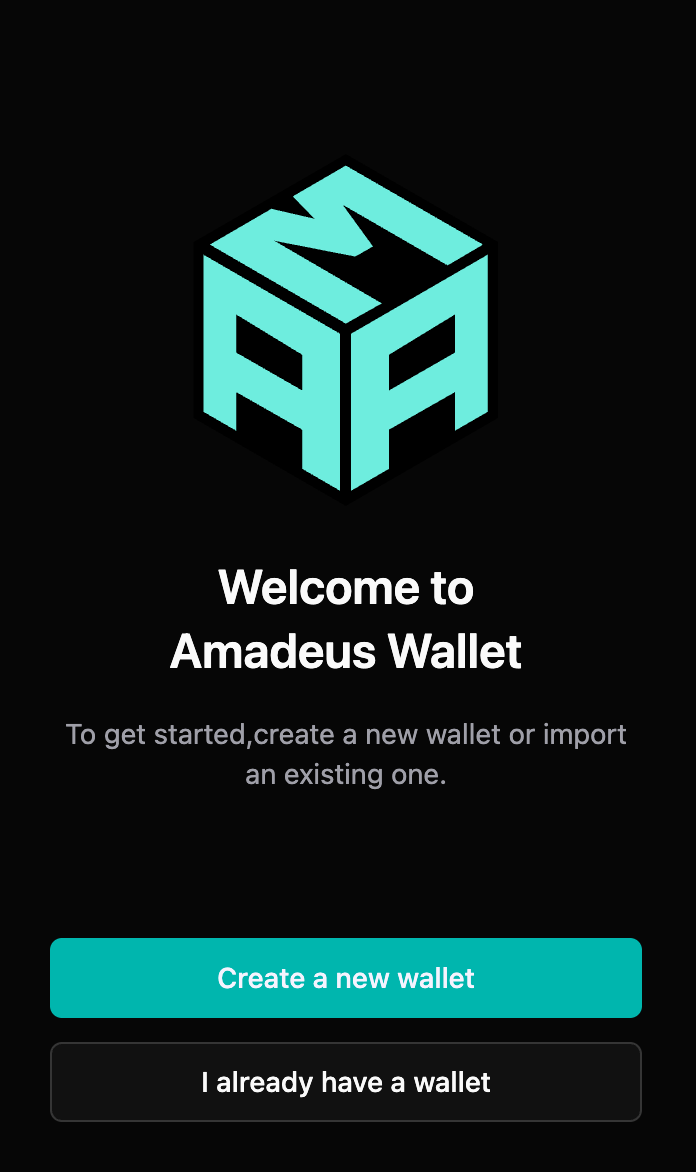
Step 1: Choose "Create New Wallet"
When you first open the extension, click "Create New Wallet" on the onboarding screen.
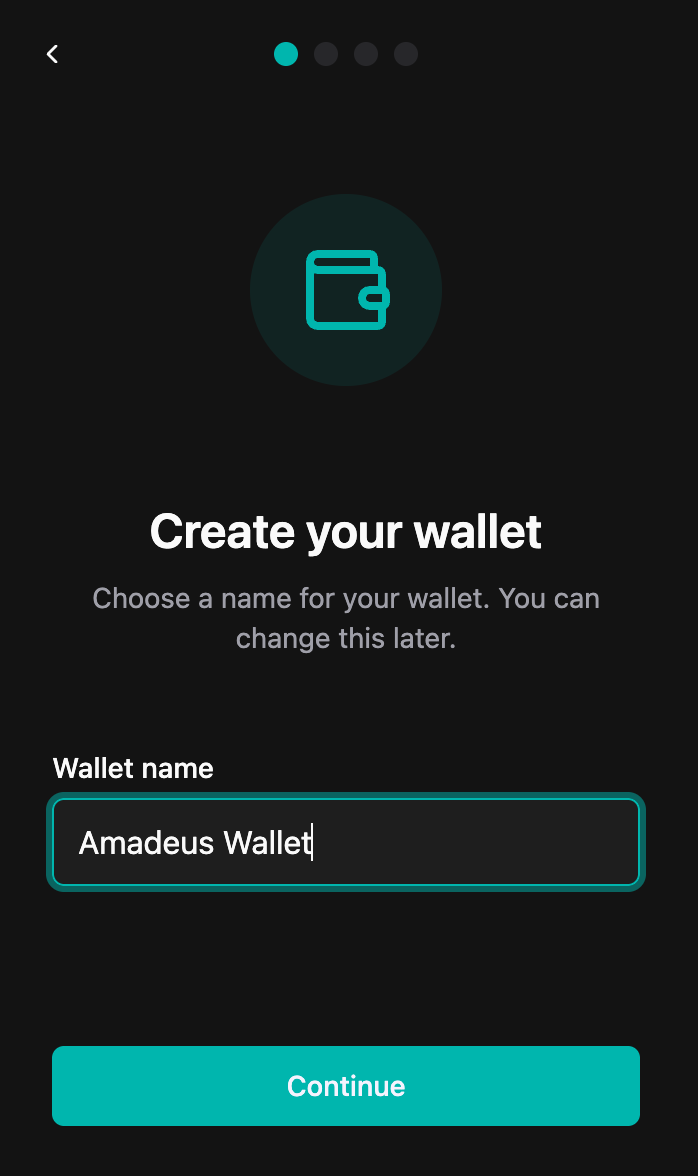
Step 2: Enter Wallet Name
- Enter a name for your wallet (e.g., "My Main Wallet")
- This name helps you identify the wallet and is stored locally
- Click "Continue"
Step 3: Set Password
- Create a strong password for your wallet
- Minimum requirements: At least 8 characters
- Use a combination of letters, numbers, and special characters
- Make it unique and memorable
- Confirm your password by entering it again
- Click "Continue"
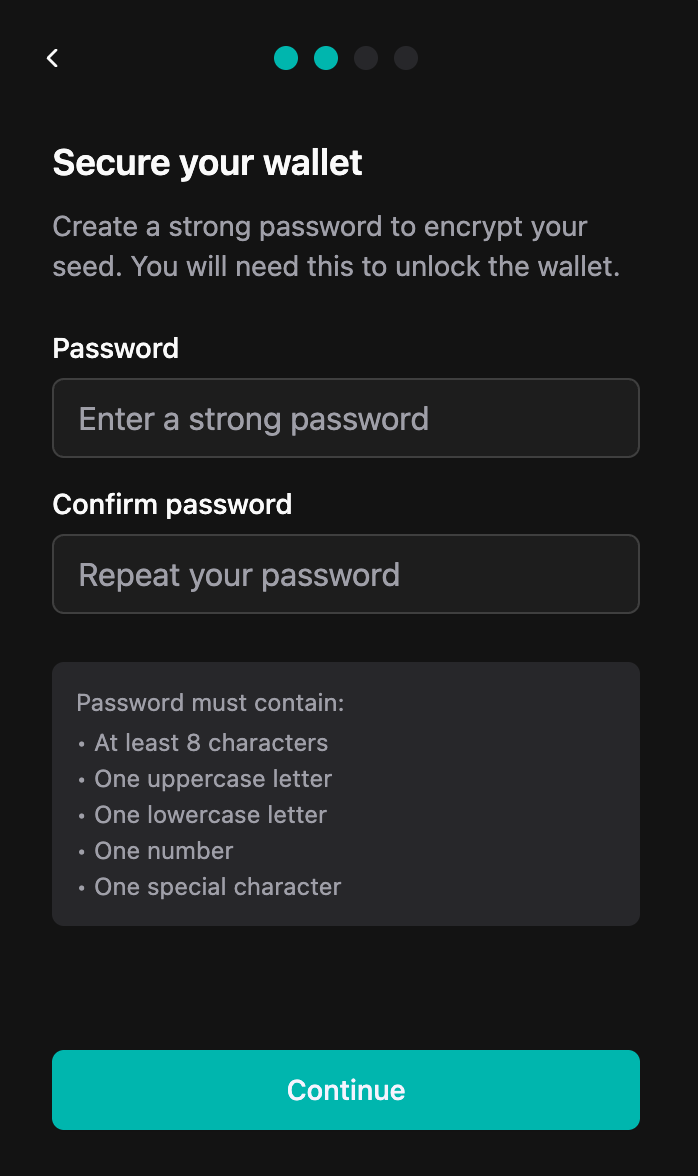
⚠️ Important: Remember this password! You'll need it every time you unlock your wallet. If you forget it, you'll need your Seed64 to reset it.
Step 4: Save Your Seed64
This is the most critical step. Your Seed64 is a 64-byte (512-bit) cryptographic seed that allows you to restore your wallet.
Understanding Seed64:
- Seed64: A 64-byte (512-bit) cryptographic seed used to derive your wallet's keys
- Format: Base58-encoded string (typically 87-88 characters)
- Purpose: Used to derive your wallet's public and private keys
- Security: This is your wallet's master key - never share it!
- Copy your Seed64
- The extension will display your Seed64
- Click the copy button to copy it to your clipboard
- The Seed64 is a long string of characters (Base58 encoded)
- Store it securely
- Write it down on paper or store in encrypted format
- Keep it in a safe place (fireproof safe, bank vault)
- Never share it with anyone
- Never store it digitally in unencrypted form (screenshots, cloud storage, email, etc.)
- Consider making multiple copies stored in different secure locations
- Consider using password manager (encrypted) or encrypted USB drive
- Verify you've saved it correctly
- Double-check that you've copied the complete Seed64
- Ensure no characters are missing
- Click the checkbox to confirm you've saved it
- Click "Continue"
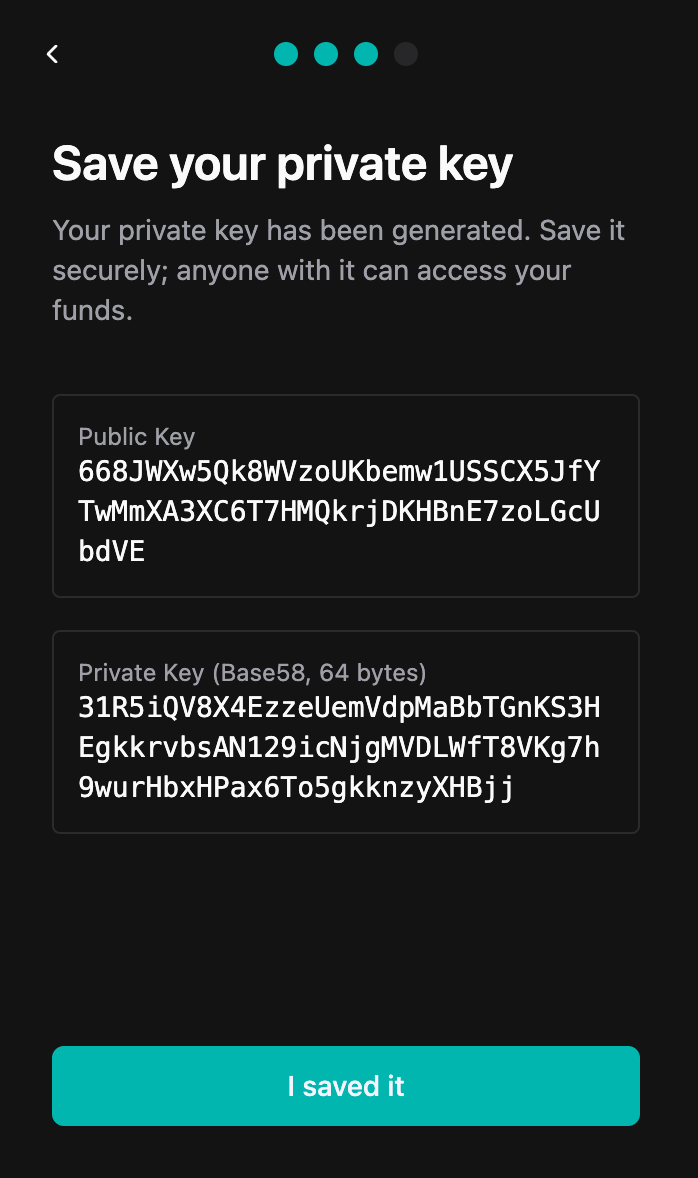
⚠️ Critical: Your Seed64 is the only way to recover your wallet. Store it securely and never share it!
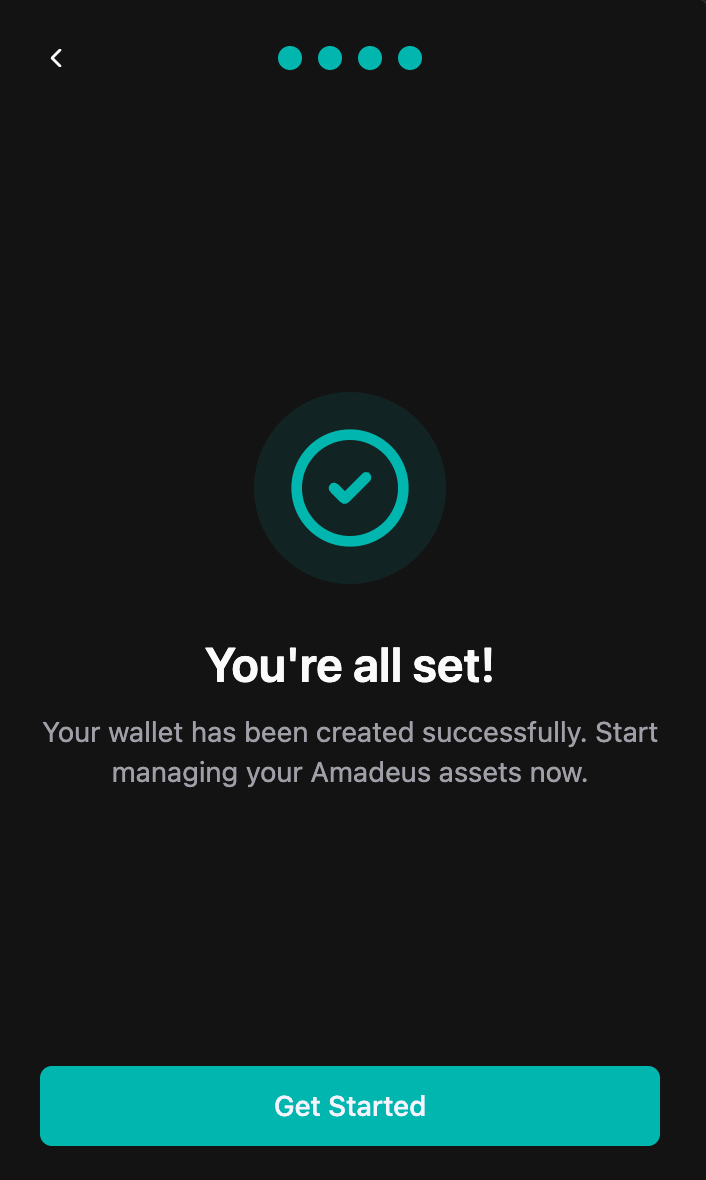
Step 6: Wallet Created
Congratulations! Your wallet has been created successfully.
- Your wallet address (public key) will be displayed
- You can copy it to share with others for receiving tokens
- Click "Go to Dashboard" to start using your wallet
Security Best Practices
Seed64 Protection
- ✅ Write Seed64 on paper or store encrypted
- ✅ Store in multiple secure locations (3-2-1 backup rule: 3 copies, 2 media types, 1 offsite)
- ✅ Use encryption for digital backups
- ✅ Consider splitting Seed64 across locations (advanced)
- ❌ Never share your Seed64 with anyone
- ❌ Never store Seed64 digitally in unencrypted form (screenshots, cloud storage, email)
- ❌ Never enter Seed64 on suspicious websites
- ❌ Never take screenshots of your Seed64
Password Security
- ✅ Use a strong, unique password (minimum 8 characters)
- ✅ Include uppercase, lowercase, numbers, and special characters
- ✅ Use a password manager for your wallet password
- ✅ Never reuse passwords across services
Troubleshooting
I forgot my password
- You can reset your password using your Seed64 through the "Forgot Password" option
I lost my Seed64
- Unfortunately, without your Seed64, you cannot recover your wallet
- This is why it's critical to store it securely
I want to create another wallet
- You can create multiple wallets, but each requires a separate Seed64
- Consider using different wallets for different purposes (main, savings, testing)