4. Unlocking Your Wallet
Learn how to unlock your Amadeus wallet to access your funds and perform transactions.
Overview
Your wallet automatically locks after a period of inactivity for security. You'll need to unlock it with your password to access your funds and perform transactions.
When You Need to Unlock
You'll be prompted to unlock your wallet when:
- You first open the extension after installation
- The wallet has been locked due to inactivity
- You manually locked the wallet from Settings
- You restart your browser
Unlocking Process
Step 1: Enter Password
- Open the Amadeus Wallet Extension
- Enter your wallet password
- Click "Unlock"
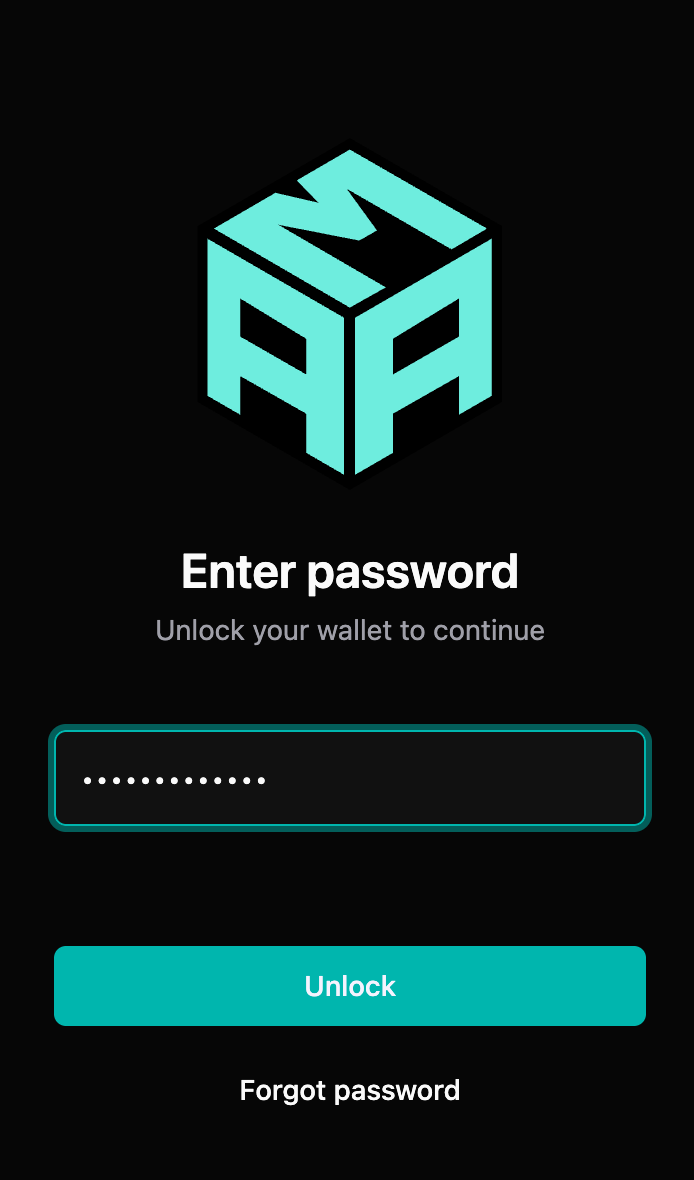
💡 Tip: If you've forgotten your password, you can reset it using your Seed64 via "Forgot Password".
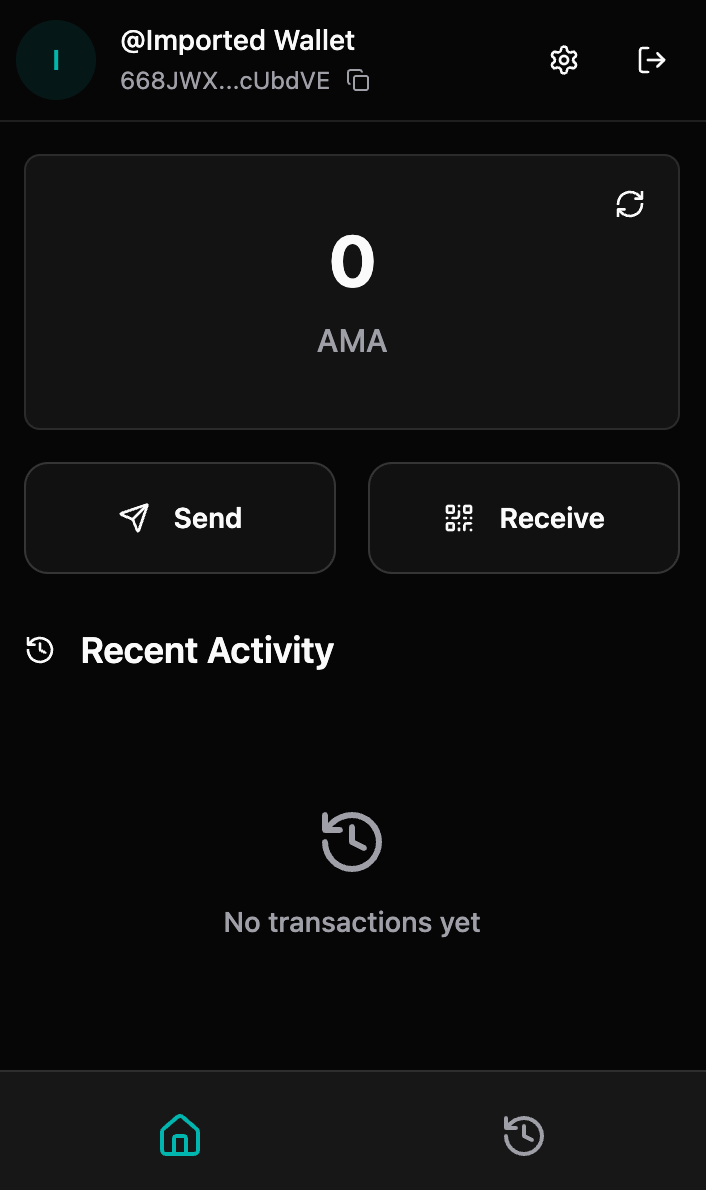
Step 2: Access Granted
Once unlocked, you'll be taken to your dashboard where you can:
- View your balance
- Send and receive tokens
- View transaction history
- Access all wallet features
Auto-Lock Feature
The wallet automatically locks after a period of inactivity to protect your funds. The default auto-lock duration is 15 minutes (configurable up to 30 minutes or more).
Configuring Auto-Lock
You can change the auto-lock duration in Settings:
- Go to Settings → Security & Privacy
- Find "Auto-lock Duration"
- Select your preferred duration:
- 5 minutes
- 15 minutes (default)
- 30 minutes
- 1 hour
- Never (not recommended)
⚠️ Security Warning: Setting auto-lock to "Never" means your wallet stays unlocked until you manually lock it. This is less secure and not recommended.
Manual Locking
You can manually lock your wallet at any time:
- Go to Settings
- Click "Lock Wallet" button at the bottom
- Your wallet will be locked immediately
Alternatively, you can lock from the dashboard:
- Click the lock icon in the header
- Or use the lock button in Settings
Forgot Password
If you've forgotten your password:
- Click "Forgot Password" on the unlock screen
- Enter your Seed64 (Base58-encoded string)
- Create a new password
- Confirm the new password
- Your wallet will be unlocked with the new password
⚠️ Important: You must have your Seed64 to reset your password. Without it, you cannot access your wallet.
Security Best Practices
- ✅ Use a strong, unique password
- ✅ Enable auto-lock for security
- ✅ Lock your wallet when leaving your device unattended
- ✅ Never share your password
- ✅ Consider using a password manager for your wallet password
- ❌ Don't disable auto-lock
- ❌ Don't write your password in plain text
Session Management
When your wallet is unlocked:
- Your session remains active until auto-lock triggers
- Performing actions extends your session
- Closing the extension popup doesn't lock the wallet
- The wallet stays unlocked in the background until auto-lock
Troubleshooting
"Incorrect password" error
Possible causes:
- Typo in password
- Caps Lock enabled
- Wrong password for this wallet
Solutions:
- Double-check your password entry
- Verify Caps Lock is off
- Try typing the password slowly
- Use "Forgot Password" if needed
Wallet won't unlock
- Ensure you're using the correct password
- Check that your browser extension is up to date
- Try refreshing the extension page
- If all else fails, use "Forgot Password" with your Seed64
What's Next?
Once unlocked, you can: