7. Transaction History
Learn how to view and understand your transaction history in the Amadeus Wallet Extension.
Overview
The transaction history shows all your past transactions, including sends, receives, and dApp interactions. This helps you track your token movements and verify transactions.
Accessing Transaction History
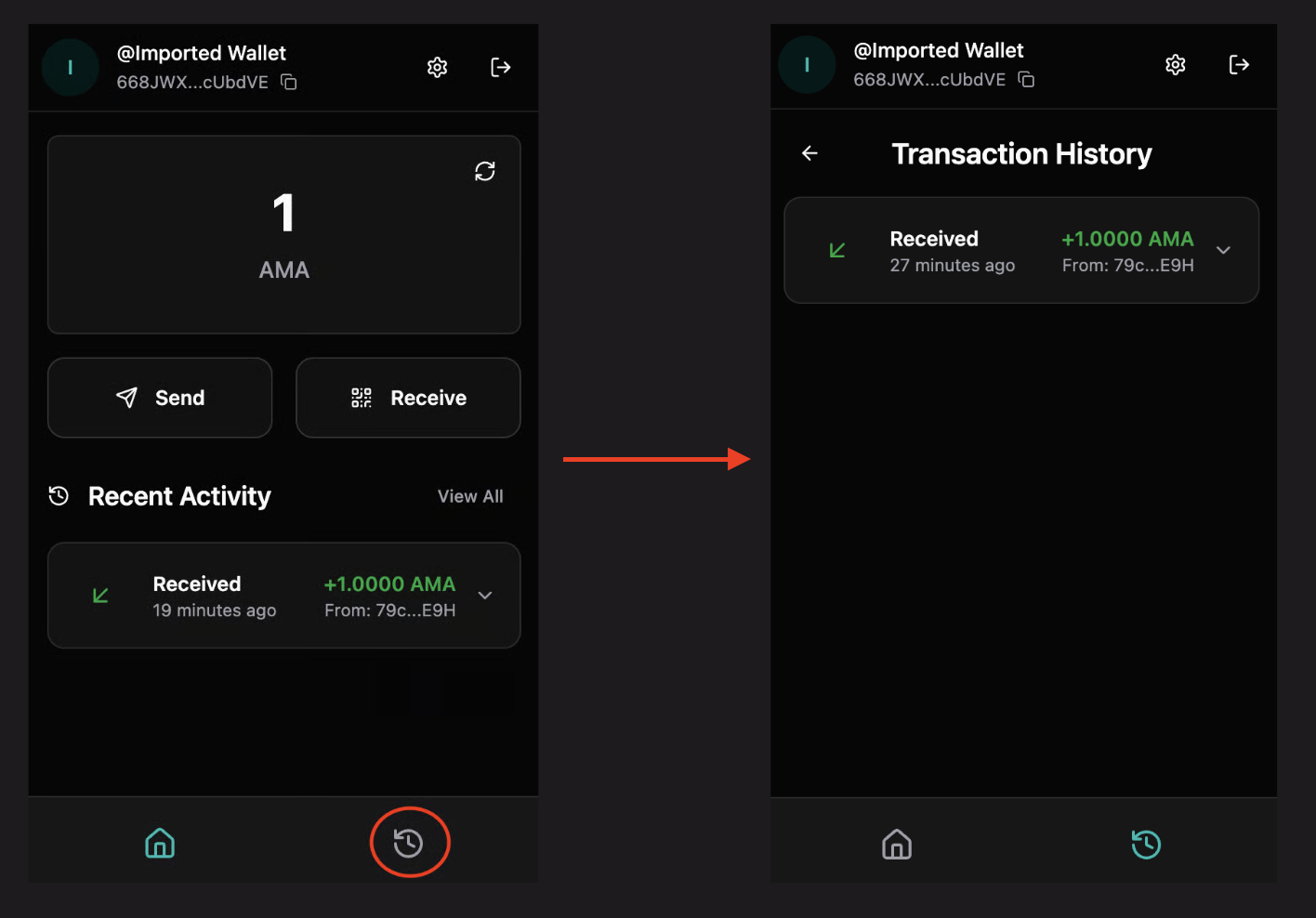
Method 1: From Navigation
- Open the Amadeus Wallet Extension
- Ensure your wallet is unlocked
- Click "History" in the navigation menu
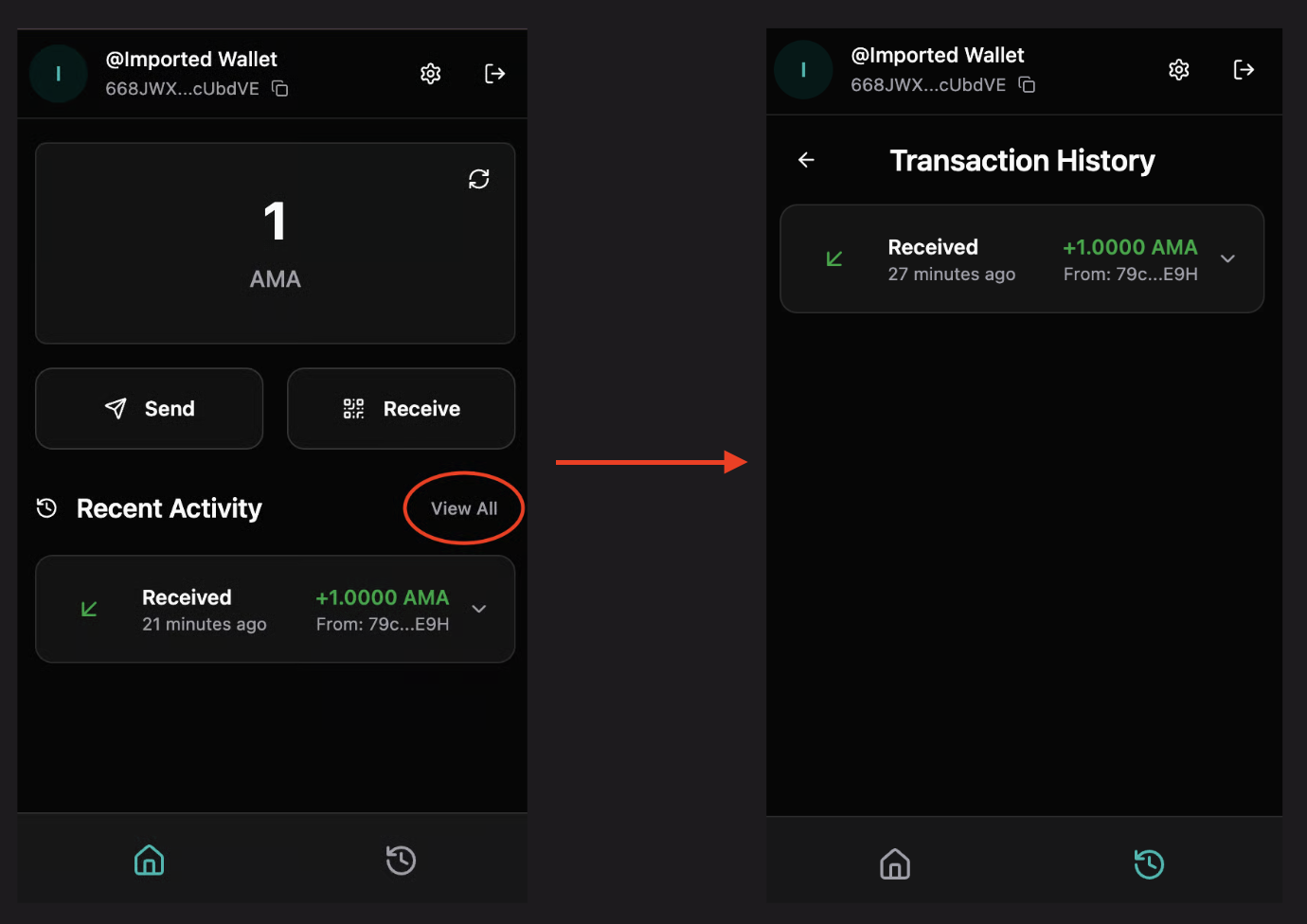
Method 2: From Dashboard
- On your dashboard, scroll down to see recent transactions
- Click "View All" to see complete history
Transaction List View
The history page displays transactions in a list format showing:
- Transaction Type: Sent or Received
- Amount: Token amount transferred
- Address: Recipient (for sends) or sender (for receives)
- Timestamp: When the transaction occurred
- Status: Success or Failed
Transaction Details
Click on any transaction to view detailed information:
Basic Information
- Transaction Hash: Unique identifier for the transaction
- Status: Success or Failed
- Timestamp: Exact time of the transaction
- Block Slot: Block number (if confirmed)
Transfer Details
- From: Sender's address
- To: Recipient's address
- Amount: Amount transferred
- Token Symbol: Token type (AMA, etc.)
Contract Information
- Contract: Contract address (if applicable)
- Function: Function called (e.g., "transfer")
Transaction Status
Success
- ✅ Green badge indicating successful transaction
- Transaction confirmed on blockchain
- Tokens successfully transferred
Failed
- ❌ Red badge indicating failed transaction
- Transaction did not complete
- May show error reason
- Tokens were not transferred
Viewing in Explorer
Each transaction can be viewed on the blockchain explorer:
- Click the external link icon next to the transaction hash
- Opens the transaction in the blockchain explorer
- View full transaction details on the public ledger
- Verify transaction on the blockchain
Filtering and Sorting
Sorting Options
- Recent First (default): Newest transactions at top
- Oldest First: Oldest transactions at top
Filtering
- Filter by transaction type (Sent/Received)
- Filter by status (Success/Failed)
- Search by address or transaction hash
Transaction Types
Sent Transactions
- Show outgoing token transfers
- Display recipient address
- Show negative amount (with minus sign)
- Red color indicator
Received Transactions
- Show incoming token transfers
- Display sender address
- Show positive amount (with plus sign)
- Green color indicator
dApp Transactions
- Transactions signed through dApps
- May show contract interactions
- Display contract and function details
Understanding Timestamps
Timestamps show:
- Relative time: "2 hours ago", "3 days ago"
- Absolute time: Full date and time on hover
- Block time: Time when transaction was included in a block
Transaction Fees
Transaction fees:
- Are deducted from your balance
- Shown in transaction details
- Vary based on network congestion
- Typically minimal amounts
Privacy Features
Hide Amounts
You can hide transaction amounts for privacy:
- Go to Settings → Preferences
- Toggle "Hide Amounts"
- Amounts will show as "******" in transaction list
Balance Privacy
- Hide balances on dashboard
- Hide amounts in transaction history
- Useful for screenshots or screen sharing
Troubleshooting
Transactions not showing
Possible causes:
- Network mismatch (Mainnet vs Testnet)
- Wallet not synced
- Network connectivity issues
Solutions:
- Verify network settings
- Refresh the extension
- Check internet connection
- Wait for sync to complete
Wrong network transactions
If transactions appear on wrong network:
- Switch to the correct network in Settings
- Transactions are network-specific
- Mainnet and Testnet have separate histories
Missing transactions
If expected transactions don't appear:
- Verify transaction was successful
- Check transaction hash in explorer
- Ensure correct network selected
- Wait for sync to complete
Transaction details not loading
- Check internet connection
- Verify blockchain explorer is accessible
- Try refreshing the page
- Check if transaction exists in explorer
Best Practices
- Regular Review: Check transaction history regularly
- Verify Large Transactions: Always verify large transactions
- Keep Records: Save important transaction hashes
- Check Status: Verify transaction status if uncertain
- Use Explorer: Use blockchain explorer for detailed verification
Security Tips
- ✅ Verify all transactions match your expectations
- ✅ Check transaction details for accuracy
- ✅ Use explorer to verify on blockchain
- ✅ Report suspicious transactions immediately
- ❌ Don't ignore failed transactions
- ❌ Don't share transaction details carelessly