8. Signing Transactions
Learn how to sign transactions when interacting with decentralized applications (dApps) using the Amadeus Wallet Extension.
Overview
When you interact with dApps on the Amadeus blockchain, they may request you to sign transactions. The wallet extension provides a secure interface to review and approve these transaction requests.
How It Works
- dApp Request: A dApp requests a transaction signature
- Extension Notification: The extension shows a notification
- Review Request: You review the transaction details
- Approve or Reject: You decide to approve or reject
- Transaction Signed: If approved, transaction is signed and returned
Receiving Sign Requests
Automatic Notification
When a dApp requests a transaction:
- The extension icon shows a badge notification
- Clicking the extension opens the sign request page
- You'll see the transaction details to review
Sign Request Page
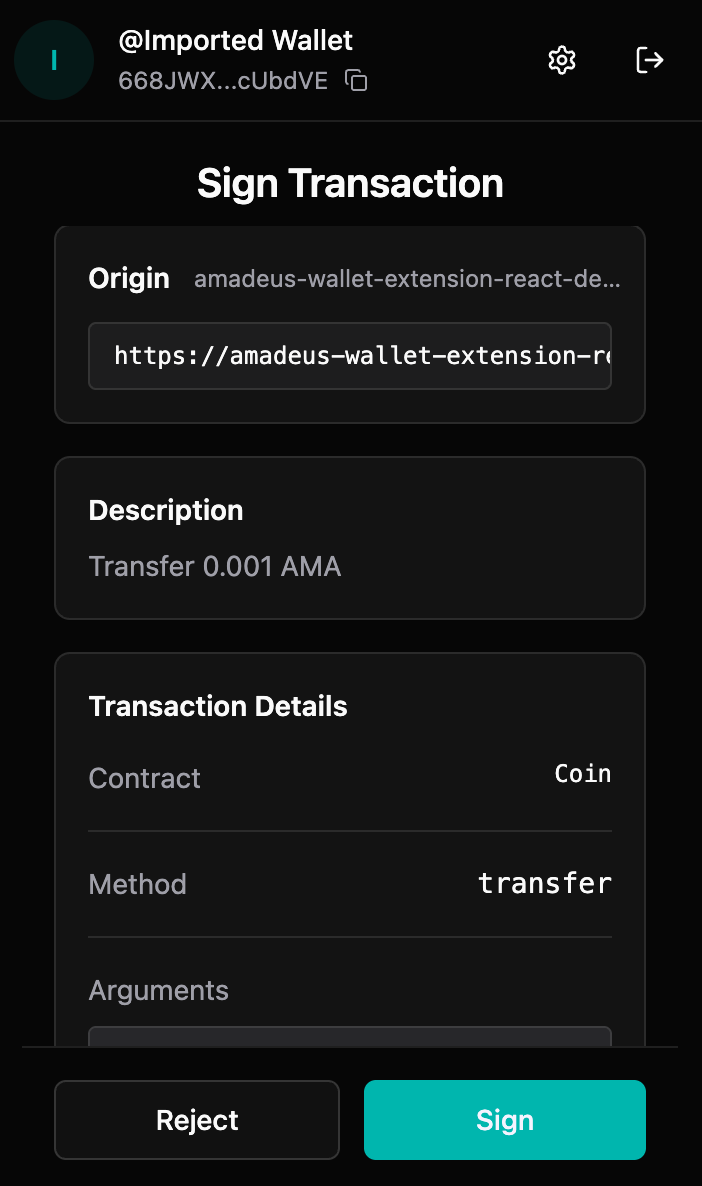
The sign request page shows:
- Origin: Which website is requesting the signature
- Description: Optional description from the dApp
- Contract: Smart contract address
- Method: Function being called
- Arguments: Parameters for the function call
Reviewing Transaction Requests
Step 1: Review Origin
- Check which website is requesting the signature
- Verify it's a trusted dApp
- Ensure the domain matches the expected dApp
Step 2: Review Details
- Description: Read any description provided by the dApp
- Contract: Verify the contract address is correct
- Method: Understand what function is being called
- Arguments: Review all parameters being passed
Step 3: Verify Safety
Before approving, verify:
- ✅ You trust the dApp
- ✅ The transaction details are correct
- ✅ You understand what the transaction does
- ✅ The amount (if any) is correct
Approving Transactions
Step 1: Click "Sign"
- After reviewing, click "Sign"
- If your wallet is locked, you'll be prompted to unlock
- Enter your password to unlock
Step 2: Processing
- The extension processes your approval
- Transaction is signed with your private key
- You'll see a "Processing" screen
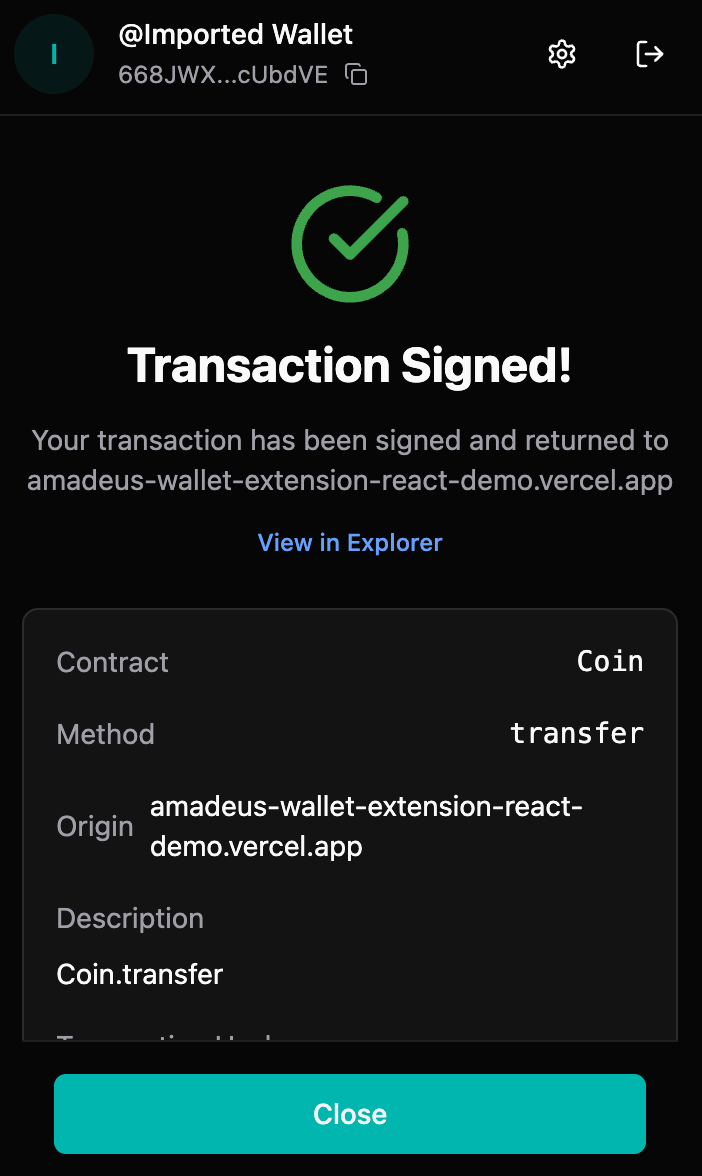
Step 3: Success
- Transaction is signed successfully
- Transaction hash is displayed
- You can view it in the explorer
- Transaction is returned to the dApp
Rejecting Transactions
When to Reject
Reject transactions if:
- ❌ You don't trust the dApp
- ❌ Transaction details look suspicious
- ❌ Amount or parameters are incorrect
- ❌ You didn't initiate the transaction
- ❌ Something seems wrong
How to Reject
- Click "Reject" on the sign request page
- Transaction request is cancelled
- dApp receives rejection notification
- No transaction is signed
Security Best Practices
Always Review
- ✅ Always review transaction details before approving
- ✅ Verify origin - ensure it's from a trusted source
- ✅ Check amounts - verify any token amounts
- ✅ Understand actions - know what the transaction does
Red Flags
Be cautious of:
- ⚠️ Requests from unknown websites
- ⚠️ Unexpected transaction requests
- ⚠️ Requests for large amounts
- ⚠️ Transactions you didn't initiate
- ⚠️ Suspicious contract addresses
Never Approve
- ❌ Transactions you don't understand
- ❌ Requests from untrusted sources
- ❌ Transactions with incorrect details
- ❌ Anything that seems suspicious
Transaction Types
Token Transfers
- Contract: Coin contract
- Method: transfer
- Arguments: [recipient, amount, symbol]
- Common: Most common transaction type
Contract Interactions
- Contract: Various smart contracts
- Method: Various functions
- Arguments: Contract-specific parameters
- Use Case: Interacting with DeFi, NFTs, etc.
Error Handling
Common Errors
"Wallet is locked"
- Unlock your wallet first
- Then approve the transaction
"Insufficient balance"
- Ensure you have enough tokens
- Check your balance before approving
"Invalid transaction"
- Transaction may be malformed
- Reject and contact dApp support
"Network mismatch"
- Ensure you're on the correct network
- Switch networks if needed
dApp Integration
For Developers
dApps integrate with the wallet using:
// Request accounts
const accounts = await window.amadeus.requestAccounts()

// Sign transaction
const result = await window.amadeus.signTransaction({
  contract: 'Coin',
  method: 'transfer',
  args: [recipient, amount, symbol],
  description: 'Send tokens'
})
See dApp Integration Guide for developers.
Troubleshooting
Sign request not appearing
Possible causes:
- Extension not installed or enabled
- dApp not properly integrated
- Browser compatibility issues
Solutions:
- Verify extension is installed and enabled
- Refresh the dApp page
- Check browser console for errors
- Ensure dApp is using correct integration
Transaction stuck
If transaction is stuck:
- Check transaction status in explorer
- Verify network connectivity
- Try rejecting and re-requesting
- Contact dApp support if persistent
Wrong transaction details
If details seem wrong:
- Reject the transaction
- Contact dApp support
- Verify you're on correct dApp
- Check for phishing attempts
Best Practices
- Review Carefully: Always review transaction details
- Start Small: Test with small amounts first
- Verify Origin: Ensure requests are from trusted sources
- Understand Actions: Know what transactions do
- Keep Updated: Keep extension updated for security